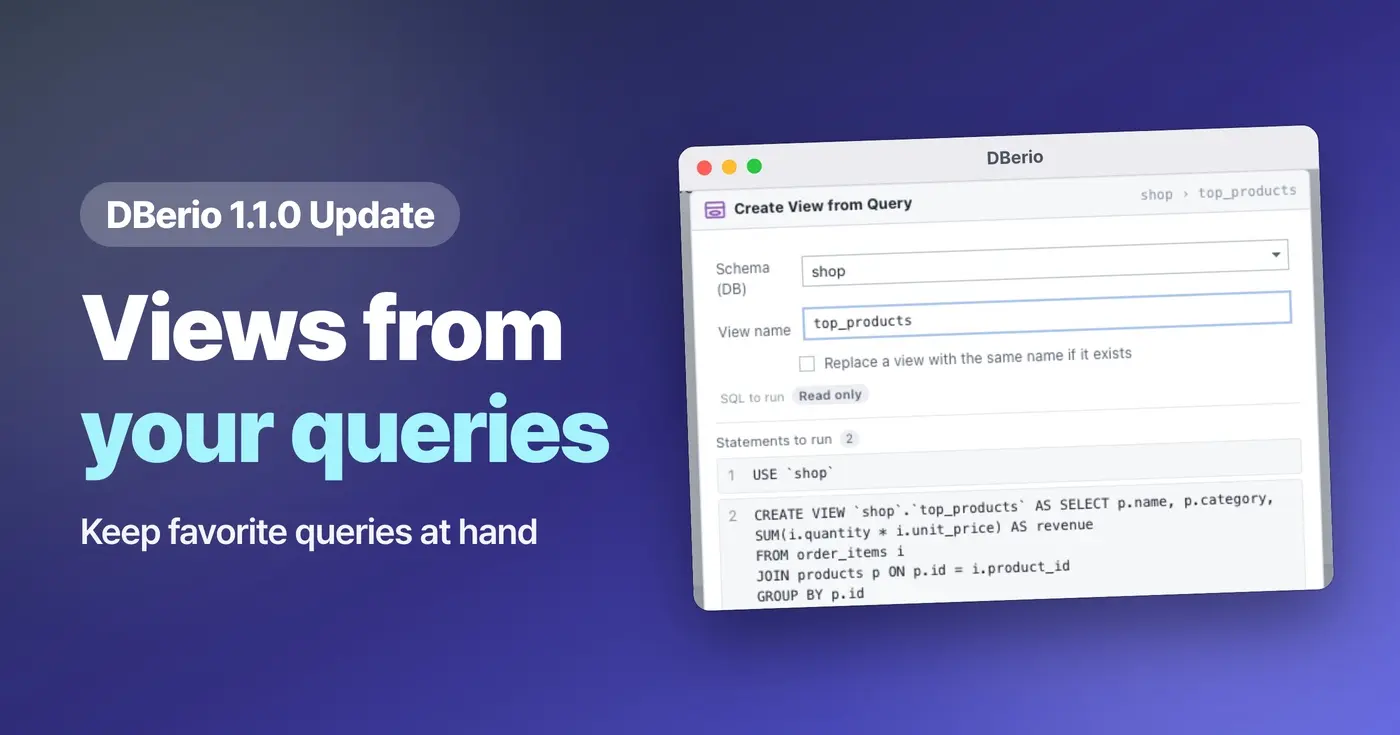
We're rolling out DBerio 1.1.0, an update to our database client for Mac and Windows. It is now live on both the Mac App Store and the Microsoft Store, so you can get the update from the store.
With this version, you can turn a query into a view and edit it again, and keep the queries you use often in one place, all from the same window. Checks before you change data or privileges are also more thorough.
Create a view straight from a query
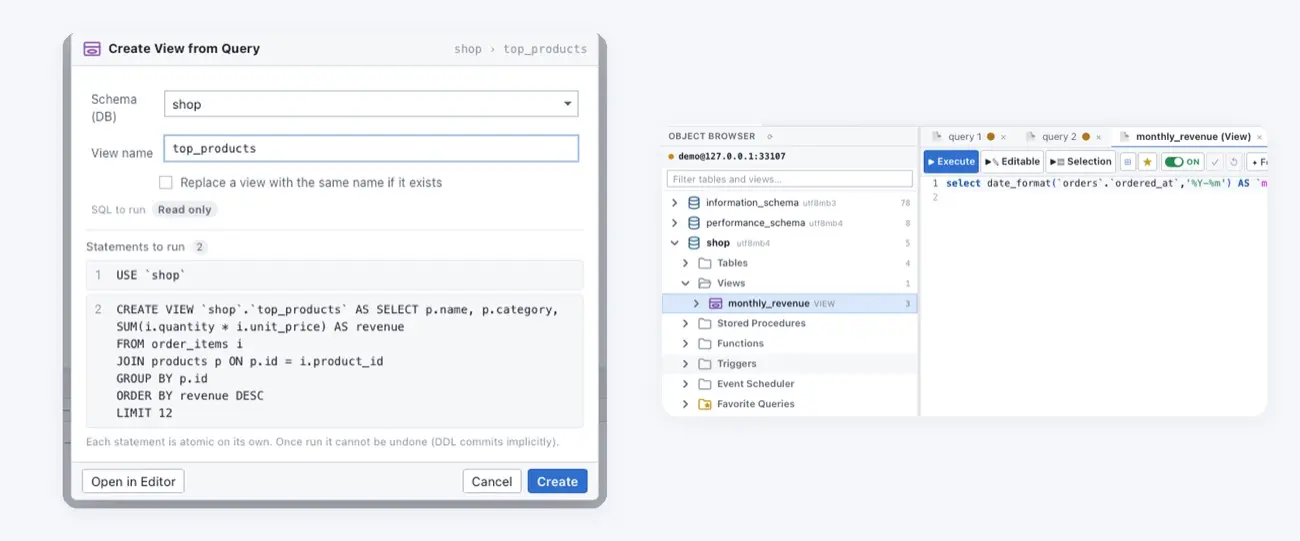
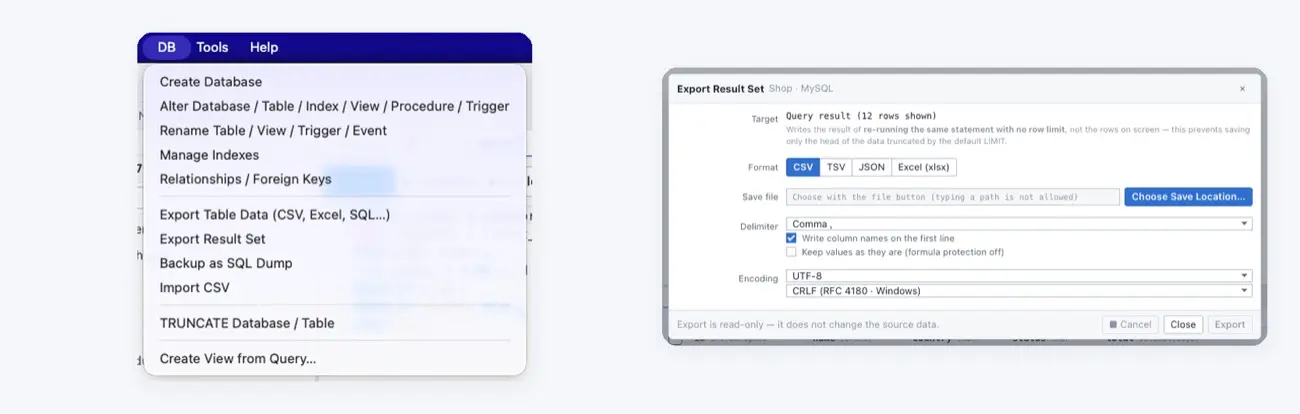
You can save a SELECT statement from the query editor as a view with "Create View from Query…". It is available from the DB menu, the toolbar, and the editor's right-click menu, so once a query returns what you want, you can keep it as a view right there.
For an existing view, right-click it in the tree and choose "Open in Query Editor" to open the query that defines it in a new tab. The query is not run when it opens, so you can read it, make changes, and save it as a view again. Materialized views cannot be opened in the query editor.
Keep the queries you use often as favorites
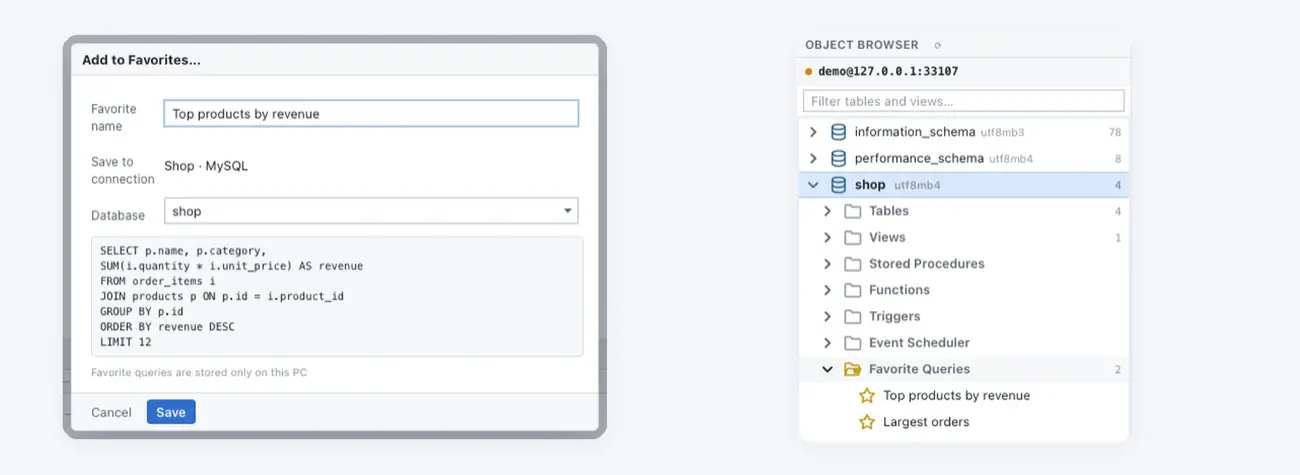
Right-click in the query editor and choose "Add to Favorites…" to save the current query under a name. Saved queries are collected in a "Favorite Queries" folder under each database in the tree, so you can pick them up right inside the database client instead of retyping them or hunting for a file.
Favorite queries are stored only on this PC and are not sent anywhere else. If you delete a connection profile, that connection's favorite queries are deleted with it, so copy them to another connection first if you want to keep them.
Menu names in your chosen language, and CSV exports that block formulas by default
When you choose Korean, English, or Japanese as the app language, the top menu names (File, Edit, View, DB, Tools, Help) now change to that language too. On a Mac, the application menu changes as well.
When you export results to CSV or TSV, DBerio now adds a ' in front of values that start with = + - @ by default, so spreadsheets do not run them as formulas when opened. Negative numbers are left as they are. If you need to export the values untouched, turn on "Keep values as they are (formula protection off)".
Refined checks before changes, and Data Search
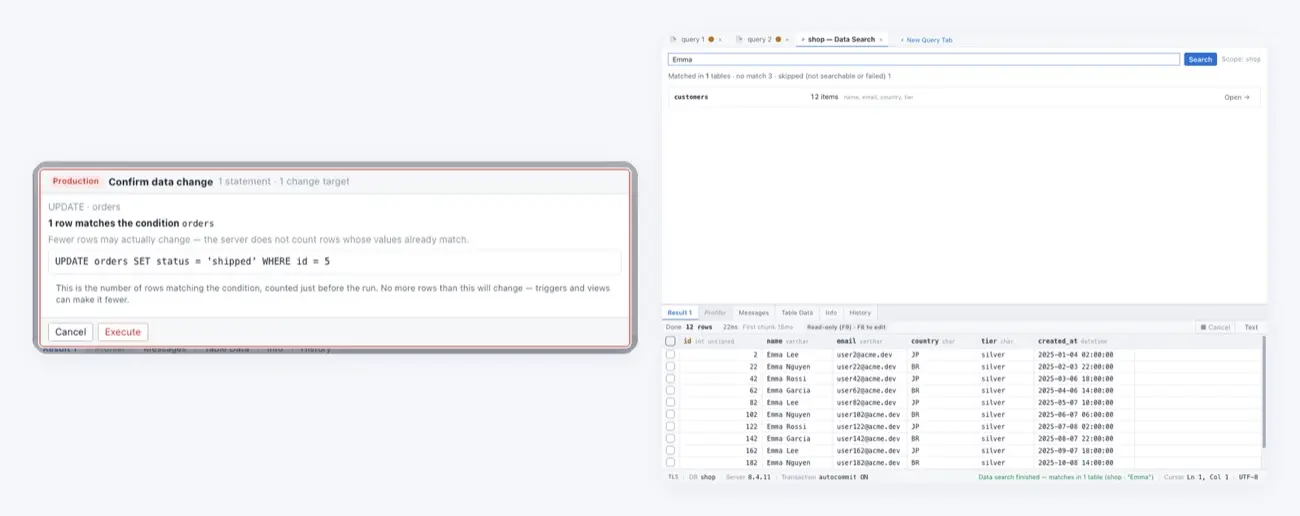
DBerio now asks once more before running UPDATE or DELETE. WITH statements that write data and statements with MySQL executable comments go through the same check, so they do not slip past. On a connection you have marked as a production server, the confirmation also shows that it is a production connection, and DBerio asks again when you change databases, accounts, or privileges. Changes that are hard to undo, such as granting strong server-wide privileges or dropping something, run on a production connection only after you type the name. If you work with production and development servers in the same database client, this gives you one more moment to stop before running something by mistake.
"Data Search" now finds the values you look for more accurately, and you can cancel a search that is taking a long time. For cells holding very large values, DBerio loads only the first part and tells you that the value was cut off.
Polished screens
- The toolbar, result bar, connection tabs, and status bar no longer get cut off when you narrow the window to about 1024 wide.
Fixed in 1.0.2
Here is a summary of what we fixed in the previous 1.0.2 update.
- In the query editor, DBerio runs the statement your cursor is on even when the cursor sits right after the semicolon at its end.
- The number of rows a query returned is also recorded in the Messages tab.
- If you try to disconnect while a query tab has unsaved content, DBerio tells you which tabs would lose their content and asks again.
- The first time you connect to a server through an SSH tunnel, a dialog shows the host key fingerprint. Click "Trust and Save" to store it; from then on, DBerio will not connect if the fingerprint changes.
- Fixed old messages lingering in the status bar.
- If the connection list settings file is damaged and cannot be read, DBerio moves that file aside under a different name, tells you it did so, and starts with an empty list. Saved passwords are not deleted.
- The Mac app is smaller.
What you can do with the DBerio database client
DBerio is a database client that lets you manage MySQL, MariaDB, PostgreSQL, SQLite, and Redis from one window. In results from a table with a primary key, you can edit cell values directly and add or delete rows, and you can preview the SQL that will run before you change a table's structure. For Redis, you can browse keys and view and edit string, hash, list, set, and zset values (stream values are view-only).
If you are new to DBerio, you can get an overview of the main features in the DBerio 1.0 launch post and the intro video. If you use both a Mac and a Windows PC, you can use one database client with the same screens on both computers.
If anything feels awkward or there is a feature you need, let us know at the address below. We will use your feedback as we plan the next update.
Download
- Mac App Store: https://apps.apple.com/app/id6819625601
- Microsoft Store: https://apps.microsoft.com/detail/9N53NQGJ3TNG
- Website: https://dberio.com
Contact: dberio@reply.codesand.co.kr
MySQL, MariaDB, PostgreSQL, SQLite, and Redis are trademarks of their respective owners. Redis is a registered trademark of Redis Ltd. Any rights therein are reserved to Redis Ltd. DBerio is not affiliated with these owners.