Here is the D-Day Keep 1.6.2 update. This version improves how the photos you add to a D-Day are handled. The update is now live in both the Android and iOS stores, so you can update right away.
Fixed the app closing while picking a photo
If you tapped add photo, saw no response and tapped again, the gallery picker could open twice and the app would close. Now the add button is locked while the picker is in progress, and the app no longer closes even if the same request comes in twice.
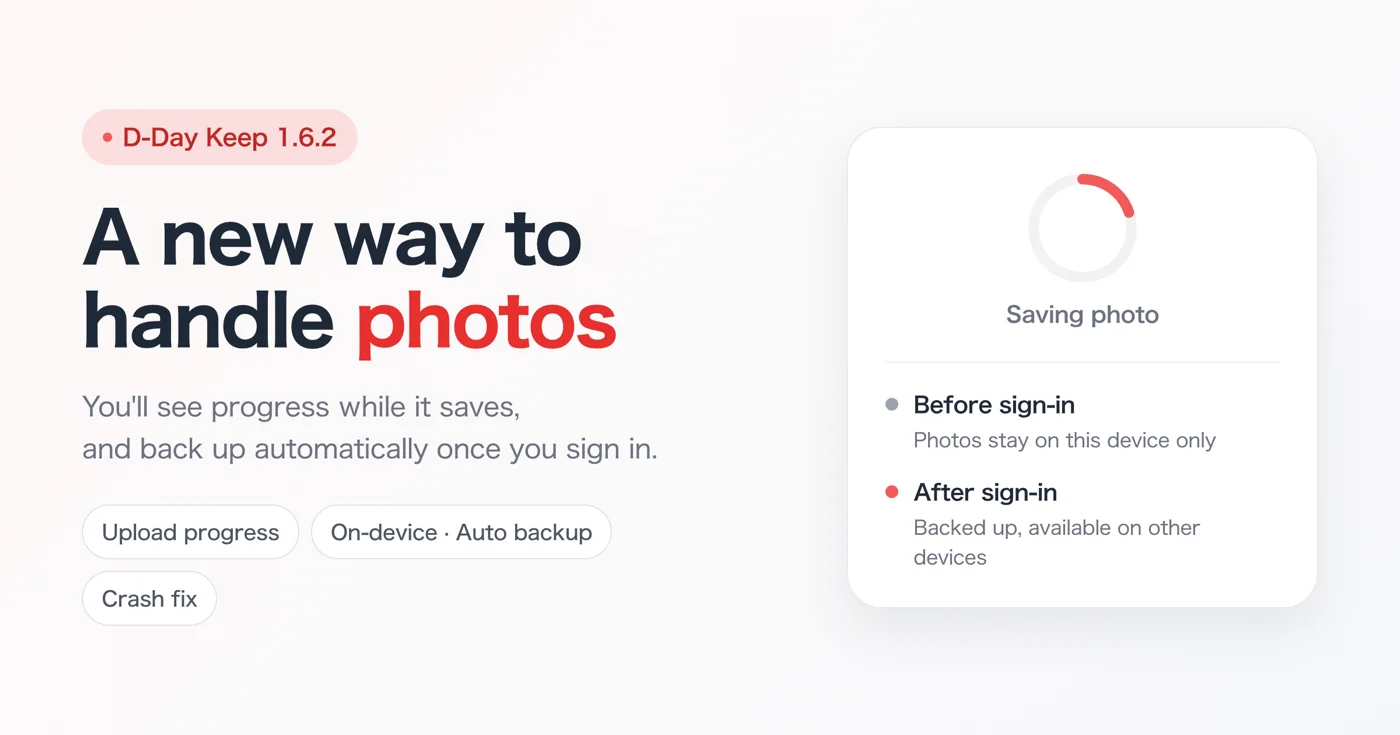
A progress indicator while the photo is saved
Even after you pick a photo from the gallery and the picker closes, it takes a moment to copy the photo onto the device and back it up. Until now, nothing changed on screen during that time, so it was easy to think saving had failed.
Now, during that time, the add button turns into a spinner and cannot be tapped until saving is finished. The progress indicator appears in two places.
First, "My Photos" on the Customize screen — the screen you open by tapping the palette icon at the top right of a D-Day's detail screen.
Second, the style step when you first start the app — "Pick a style you like", where you choose a photo while creating your first D-Day.
Photos are now stored differently
Starting with this version, where your photos are stored depends on whether you are signed in. There is nothing new to choose in Settings — only the place where photos are stored changes.
- If you use the app without signing in, the photos you add are stored only on this device. They look and work in the app exactly as before. They stay in your "My Photos" list and can still be used as D-Day backgrounds. However, because they are not backed up to the server, those photos are lost if you delete the app or change devices.
- When you sign in, your photos are backed up automatically. Photos you added before signing in are uploaded when you sign in, so you do not need to pick them again. Photos you add afterwards are also backed up automatically and appear as they are when you sign in on another device.
- When you share a D-Day, its photo is included in the link whether or not you are signed in. So that the recipient can see the photo too, that one photo is uploaded the moment the share link is created. The progress screen that appears briefly after you tap Share is this step. If the connection is poor and this step cannot finish, the D-Day is shared without the photo, and in that case we let you know before you share.
Photos that were already backed up stay as they are, regardless of this change. If you want to keep your photos safe, please sign in from Settings.
Deleting your account now also deletes photos left on the device
When you delete your account, we tell you that "all photos you uploaded will be deleted". Until now, however, only the photos on the server were deleted, and photo files left on the device remained. From 1.6.2, when you delete your account, the photo files stored on the device are deleted too. Signing out is not affected — your data on the device stays as it is when you sign out.
Download
- Android: https://play.google.com/store/apps/details?id=com.codesandkr.dkeep
- iOS: https://apps.apple.com/app/id6772022931
- Official site: https://codesand.co.kr/en/app/dkeep
Contact: dkeep@reply.codesand.co.kr