
Verified guide
This guide was verified by creating a cloud server and running every command in it, from start to finish, exactly as written.
- OS
- Windows 11 Pro 25H2 (build 26200) · x64
- Installed version
- pyenv-win 3.1.1, Python 3.14.5 / 3.13.13 (pyenv), Python 3.15.0 / 3.14.8 (Python Install Manager 26.4), pip 26.1.1
- Test server
- Microsoft Azure · 2 vCPU / 4 GB RAM (Standard_B2als_v2, koreacentral)
- Last checked
- 2026-10-12
Install Python on Windows 11 with pyenv-win, then fix the issue where typing python opens the Microsoft Store, switch versions, check pip and virtual environments (venv), and remove everything cleanly. This guide also covers installing the latest Python 3.15 with the official Python Install Manager.
1. Requirements
- A Windows 11 PC (x64)
- A user account signed in to Windows — the steps in this guide do not need administrator rights
- An internet connection
Every step in this guide was tested on a Windows 11 Pro 25H2 (build 26200, x64) virtual machine with 2 vCPUs and 4 GB of memory. We signed in with a regular account in the Administrators group, and the PowerShell script execution policy was left at the Windows 11 default (Restricted).
2. Choosing an installation method
- Install with pyenv-win: you can keep several Python versions installed and set a default version for the whole PC and a different version for each project folder. This works the way pyenv does on Linux and macOS. Covered in steps 3–9.
- Install with the official Python Install Manager: the Windows installation manager from python.org (the
pycommand). It installs new Python releases right away and also manages several versions. Covered in step 10.
On the day this guide was tested (October 12, 2026), the newest Python was 3.15.0. The pyenv-win version list only went up to 3.14.5, so 3.15 could not be installed with it (step 7). If you need the newest version, use the official install manager. If you use both methods on the same PC, it becomes unclear which python runs, so choose one.
3. Check the current state
Search for PowerShell in the Start menu and open it. You do not need to run it as administrator. On Windows 11 without Python installed, running python shows a message telling you to install it from the Microsoft Store.
python --versionPython was not found; run without arguments to install from the Microsoft Store, or disable this shortcut from Settings > Apps > Advanced app settings > App execution aliases.The python command exists even though Python is not installed, because Windows 11 creates shortcuts (app execution aliases) that point to the Microsoft Store.
Get-Command python, python3, py -ErrorAction SilentlyContinue | Format-Table Name, Source -AutoSizeName Source
---- ------
python.exe C:\Users\devuser\AppData\Local\Microsoft\WindowsApps\python.exe
python3.exe C:\Users\devuser\AppData\Local\Microsoft\WindowsApps\python3.exe4. Turn off the Microsoft Store shortcuts (app execution aliases)
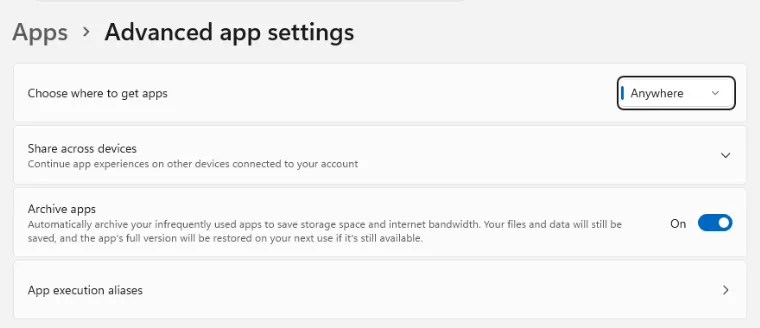
While these shortcuts are on, the Store shortcut can run instead of the Python you install with pyenv-win. Open Settings. The command below opens Settings › Apps › Advanced app settings directly.
Start-Process ms-settings:advanced-appsClick App execution aliases.
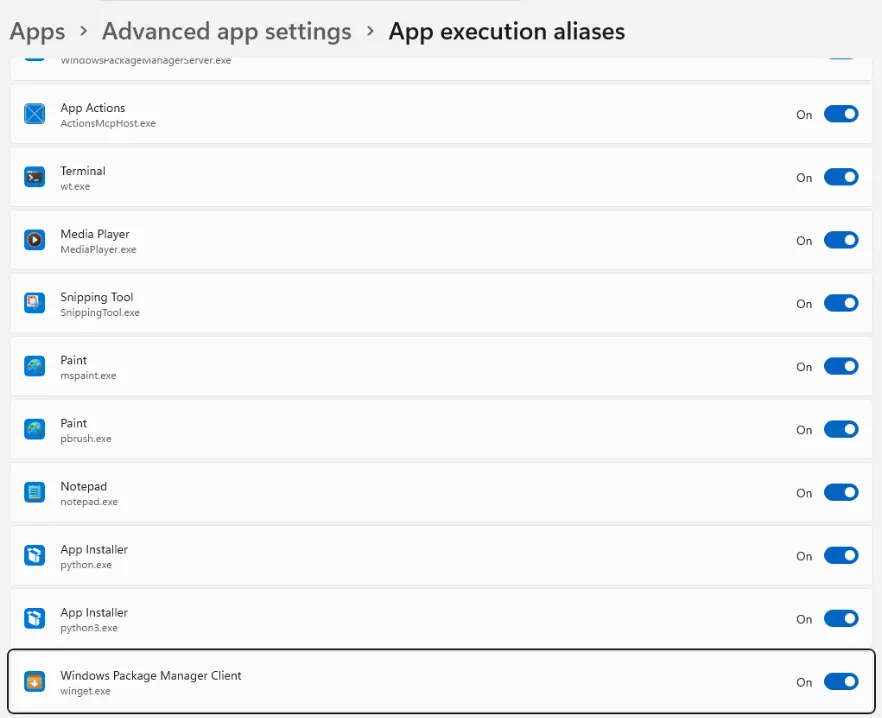
Near the bottom of the list there are two App Installer entries: one for python.exe and one for python3.exe.
Click the switches of both entries to turn them off. They are off when Off appears on the right.
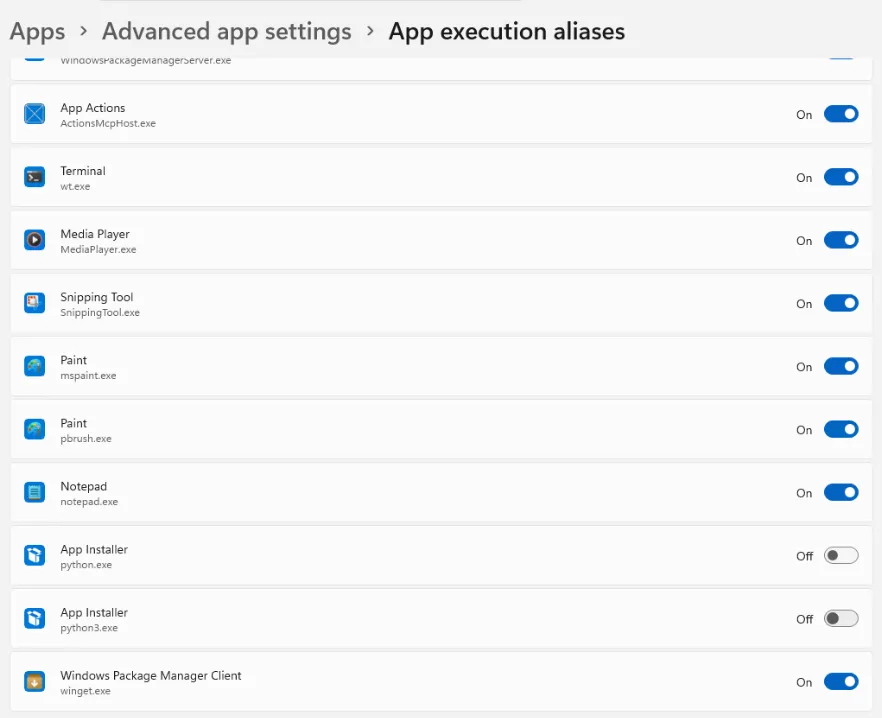
Close Settings and run the command again in PowerShell. You now get an error saying the python command cannot be found. This means the shortcuts are off.
python --versionpython : The term 'python' is not recognized as the name of a cmdlet, function, script file, or operable program.
Check the spelling of the name, or if a path was included, verify that the path is correct and try again.5. Install pyenv-win
Download the official pyenv-win install script and run it. Invoke-WebRequest is the PowerShell command that downloads a file, and -OutFile sets the file name to save. The & after it runs the downloaded script.
Invoke-WebRequest -UseBasicParsing -Uri "https://raw.githubusercontent.com/pyenv-win/pyenv-win/master/pyenv-win/install-pyenv-win.ps1" -OutFile "./install-pyenv-win.ps1"; &"./install-pyenv-win.ps1"& : File C:\Users\devuser\install-pyenv-win.ps1 cannot be loaded because running scripts is disabled on this system.
For more information, see about_Execution_Policies at https:/go.microsoft.com/fwlink/?LinkID=135170.The install script did not run because the default PowerShell script execution policy on Windows 11 is Restricted, which does not run scripts. The file was downloaded. Apply the RemoteSigned policy for the current user only. RemoteSigned runs scripts that are on this PC and runs scripts downloaded from the internet only if they are signed. With -Scope CurrentUser, you do not need administrator rights and other users are not affected.
Set-ExecutionPolicy -Scope CurrentUser -ExecutionPolicy RemoteSigned
Get-ExecutionPolicy -List
Scope ExecutionPolicy
----- ---------------
MachinePolicy Undefined
UserPolicy Undefined
Process Undefined
CurrentUser RemoteSigned
LocalMachine RestrictedRun the downloaded install script again. A .pyenv folder is created in your user folder and the installation finishes.
&"./install-pyenv-win.ps1" Directory: C:\Users\devuser
Mode LastWriteTime Length Name
---- ------------- ------ ----
d----- 10/12/2026 12:07 AM .pyenv
pyenv-win is successfully installed. You may need to close and reopen your terminal before using it.6. Check the pyenv installation
As the message says, close the PowerShell window and open a new one. A window opened before installation cannot read the updated environment variable (PATH). Check the version in the new window.
pyenv --versionpyenv 3.1.1Get-Command pyenv | Format-Table Name, CommandType, Source -AutoSizeName CommandType Source
---- ----------- ------
pyenv.ps1 ExternalScript C:\Users\devuser\.pyenv\pyenv-win\bin\pyenv.ps1pyenv also runs as a PowerShell script (pyenv.ps1). If you did not change the execution policy in step 5, you get the same error here.
7. Check which versions you can install
pyenv install --list shows every version you can install. The list is long, so Select-String picks out only 3.14 and 3.15. ^3\.1[45]\.\d+$ means a line that is exactly "3.14.number" or "3.15.number".
pyenv install --list | Select-String "^3\.1[45]\.\d+$"3.14.0
3.14.1
3.14.2
3.14.3
3.14.4
3.14.5Python 3.14.8 and 3.15.0 have already been released, but the list only goes up to 3.14.5. pyenv-win keeps a saved copy of the version list, and pyenv update, which refreshes that list, fails on Windows 11 with the error below. The problem has been reported in the pyenv-win repository and was not fixed as of the day this guide was tested. This guide therefore continues with 3.14.5 and 3.13.13, which are in the list. If you need 3.15, use the official install manager in step 10.
pyenv update:: [Info] :: Mirror: https://www.python.org/ftp/python
:: [Info] :: Mirror: https://downloads.python.org/pypy/versions.json
:: [Info] :: Mirror: https://api.github.com/repos/oracle/graalpython/releases
C:\Users\devuser\.pyenv\pyenv-win\libexec\pyenv-update.vbs(172, 13) htmlfile: This command is not supported.8. Install Python and set the default version
Install Python 3.14.5. pyenv-win downloads the official installer from python.org and installs Python inside your user folder. No administrator prompt appears.
pyenv install 3.14.5:: [Info] :: Mirror: https://www.python.org/ftp/python
:: [Info] :: Mirror: https://downloads.python.org/pypy/versions.json
:: [Info] :: Mirror: https://api.github.com/repos/oracle/graalpython/releases
:: [Downloading] :: 3.14.5 ...
:: [Downloading] :: From https://www.python.org/ftp/python/3.14.5/python-3.14.5-amd64.exe
:: [Downloading] :: To C:\Users\devuser\.pyenv\pyenv-win\install_cache\python-3.14.5-amd64.exe
:: [Installing] :: 3.14.5 ...
:: [Info] :: completed! 3.14.5Installing alone does not create a python command. Set the default version for the whole PC with pyenv global.
pyenv global 3.14.5Check that python and pip run. pip is the tool that installs Python packages and is installed together with Python.
python --versionPython 3.14.5pip --versionpip 26.1.1 from C:\Users\devuser\.pyenv\pyenv-win\versions\3.14.5\Lib\site-packages\pip (python 3.14)In the list of installed versions, the one marked with * is the version in use, and the text in parentheses is the file that set it.
pyenv versions* 3.14.5 (set by C:\Users\devuser\.pyenv\pyenv-win\version)python and pip run through launcher files in the pyenv-win shims folder. These files find and run the selected Python version.
Get-Command python, pip | Format-Table Name, CommandType, Source -AutoSizeName CommandType Source
---- ----------- ------
python.bat Application C:\Users\devuser\.pyenv\pyenv-win\shims\python.bat
pip.bat Application C:\Users\devuser\.pyenv\pyenv-win\shims\pip.bat9. Use a different version for each project folder
Install Python 3.13 as well. The newest 3.13 release in the list was 3.13.13.
pyenv install 3.13.13:: [Info] :: Mirror: https://www.python.org/ftp/python
:: [Info] :: Mirror: https://downloads.python.org/pypy/versions.json
:: [Info] :: Mirror: https://api.github.com/repos/oracle/graalpython/releases
:: [Downloading] :: 3.13.13 ...
:: [Downloading] :: From https://www.python.org/ftp/python/3.13.13/python-3.13.13-amd64.exe
:: [Downloading] :: To C:\Users\devuser\.pyenv\pyenv-win\install_cache\python-3.13.13-amd64.exe
:: [Installing] :: 3.13.13 ...
:: [Info] :: completed! 3.13.13Create a project folder named hello-py and move into it. | Out-Null hides the folder details that would otherwise be printed.
mkdir hello-py | Out-Null; cd hello-pypyenv local sets the version for the current folder only. In this folder (and the folders under it), 3.13.13 runs; everywhere else, the default 3.14.5 runs.
pyenv local 3.13.13
python --version
Python 3.13.13The version is saved in the .python-version file in the folder. If you share this file with the project, other people use the same version.
Get-Content .python-version3.13.13pyenv versions* 3.13.13 (set by C:\Users\devuser\hello-py\.python-version)
3.14.5Create a virtual environment (venv)
To install packages separately for each project, create a virtual environment. python -m venv .venv creates a virtual environment named .venv in the current folder. Then turn the virtual environment on. When it is on, (.venv) appears in front of the prompt.
python -m venv .venv
.\.venv\Scripts\Activate.ps1Install the requests package inside the virtual environment. Running it as python -m pip makes sure the pip of the current virtual environment is used.
python -m pip install requestsCollecting requests
Downloading requests-2.34.2-py3-none-any.whl.metadata (4.8 kB)
Collecting charset_normalizer<4,>=2 (from requests)
Downloading charset_normalizer-3.5.2-cp313-cp313-win_amd64.whl.metadata (47 kB)
Collecting idna<4,>=2.5 (from requests)
Downloading idna-3.20-py3-none-any.whl.metadata (7.2 kB)
Collecting urllib3<3,>=1.26 (from requests)
Downloading urllib3-2.8.0-py3-none-any.whl.metadata (7.4 kB)
Collecting certifi>=2023.5.7 (from requests)
Downloading certifi-2026.7.22-py3-none-any.whl.metadata (2.5 kB)
Downloading requests-2.34.2-py3-none-any.whl (73 kB)
Downloading charset_normalizer-3.5.2-cp313-cp313-win_amd64.whl (206 kB)
Downloading idna-3.20-py3-none-any.whl (69 kB)
Downloading urllib3-2.8.0-py3-none-any.whl (135 kB)
Downloading certifi-2026.7.22-py3-none-any.whl (136 kB)
Installing collected packages: urllib3, idna, charset_normalizer, certifi, requests
Successfully installed certifi-2026.7.22 charset_normalizer-3.5.2 idna-3.20 requests-2.34.2 urllib3-2.8.0
[notice] A new release of pip is available: 26.0.1 -> 26.2.1
[notice] To update, run: python.exe -m pip install --upgrade pipImport the installed package and print its version.
python -c "import sys, requests; print('Python', sys.version.split()[0], '/ requests', requests.__version__)"Python 3.13.13 / requests 2.34.2If the Python and requests versions appear, Python, pip, and the virtual environment all work. To leave the virtual environment, run deactivate.
deactivate10. (Alternative) Install with the official Python Install Manager
python.org provides an official installation manager for Windows, Python Install Manager. You use the py command to download and install the versions you want, and it manages several versions together. New Python releases can be installed right away. When you use this method, also turn off the Microsoft Store shortcuts as in step 4.
Search for the install manager with winget. The first time you use winget, it asks you to accept the terms of the Microsoft Store source. Type Y and press Enter.
winget search Python.PythonInstallManagerThe `msstore` source requires that you view the following agreements before using.
Terms of Transaction: https://aka.ms/microsoft-store-terms-of-transaction
The source requires the current machine's 2-letter geographic region to be sent to the backend service to function properly (ex. "US").
Do you agree to all the source agreements terms?
[Y] Yes [N] No:Install the install manager. No administrator prompt appears.
winget install Python.PythonInstallManagerFound Python Install Manager [Python.PythonInstallManager] Version 26.4.240.0
This application is licensed to you by its owner.
Microsoft is not responsible for, nor does it grant any licenses to, third-party packages.
Successfully verified installer hash
Starting package install...
██████████████████████████████ 100%
Successfully installedWhen you give a version after py install, the newest release of that version is installed. Install 3.15. The first time it runs, the install manager updates itself to the newest version.
py install 3.15Python install manager was successfully updated to 26.4.
Please see https://github.com/python/pymanager/releases/tag/26.4 for all changes.
The signature for https://www.python.org/ftp/python/index-windows.json was successfully verified.
Installing Python 3.15.0.
Extracting: ...............................................................✅
Global shortcuts directory is not on PATH. Add it for easy access to global Python aliases.
Directory to add: C:\Users\devuser\AppData\Local\Python\binpy runs right away, but there is no python command yet. As the last two lines say, the folder that contains the python command is not on PATH.
py --versionPython 3.15.0python --versionpython : The term 'python' is not recognized as the name of a cmdlet, function, script file, or operable program.
Check the spelling of the name, or if a path was included, verify that the path is correct and try again.Install 3.14 as well, and check the list of installed versions. The one marked with * is the default.
py install 3.14The signature for https://www.python.org/ftp/python/index-windows.json was successfully verified.
Installing Python 3.14.8.
Downloading: ...............................................................✅
Extracting: ...............................................................✅
Global shortcuts directory is not on PATH. Add it for easy access to global Python aliases.
Directory to add: C:\Users\devuser\AppData\Local\Python\binpy listTag Name Managed By Version Alias
3.15[-64] * Python 3.15.0 PythonCore 3.15.0 python3[-64].exe, python3.15[-64].exe
3.14[-64] Python 3.14.8 PythonCore 3.14.8 python3.14[-64].exeTo run a specific version, write the version after -V:.
py -V:3.14 --versionPython 3.14.8To run Python with the python command as well, add the folder from the message to your user PATH. This command appends ; and the folder path to the current user PATH and saves it. It prints nothing.
[Environment]::SetEnvironmentVariable("Path", [Environment]::GetEnvironmentVariable("Path", "User") + ";$env:LOCALAPPDATA\Python\bin", "User")Close the PowerShell window, open a new one, and check. python runs the default version (3.15.0), and python3.14 runs 3.14.
python --versionPython 3.15.0python3.14 --versionPython 3.14.8pip --versionpip 26.2.1 from C:\Users\devuser\AppData\Local\Python\pythoncore-3.15-64\Lib\site-packages\pip (python 3.15)11. Troubleshooting
Python was not found; run without arguments to install from the Microsoft Store, or disable this shortcut from Settings > Apps > Advanced app settings > App execution aliases.
Python is not installed, or the Windows Microsoft Store shortcut ran before Python. As in step 4, turn off App Installer's python.exe and python3.exe in Settings › Apps › Advanced app settings › App execution aliases, then open a new PowerShell window and check again.
& : File C:\Users\devuser\install-pyenv-win.ps1 cannot be loaded because running scripts is disabled on this system.
This error appears because the PowerShell script execution policy is the Windows 11 default, Restricted. Run Set-ExecutionPolicy -Scope CurrentUser -ExecutionPolicy RemoteSigned and try again. The pyenv command and the virtual environment's Activate.ps1 need this setting for the same reason.
pyenv-update.vbs(172, 13) htmlfile: This command is not supported.
This is the error with which pyenv-win's pyenv update fails on Windows 11; it has been reported in the pyenv-win repository. When it occurs, the version list is not refreshed, so you cannot install recently released Python versions with pyenv. If you need the newest version, use the official install manager in step 10.
python : The term 'python' is not recognized as the name of a cmdlet, function, script file, or operable program.
With pyenv, this means you did not set a default version with pyenv global, or you ran the command in a window that was open before installation. Run pyenv versions to check that a version is marked with *, and try again in a new PowerShell window. With the official install manager, check that you added %LOCALAPPDATA%\Python\bin to your user PATH as in step 10. The py command runs without adding anything to PATH.
12. Uninstall
Uninstall pyenv-win
Running the pyenv-win install script with -Uninstall removes the .pyenv folder (including the Python versions you installed) and the environment variables. Run it from your user folder, where install-pyenv-win.ps1 was downloaded during installation.
&"./install-pyenv-win.ps1" -UninstallRemoving C:\Users\devuser\.pyenv...
Removing environment variables...
pyenv-win successfully uninstalled.Check that no pyenv entries remain in the user PATH.
[Environment]::GetEnvironmentVariable("Path", "User") -split ";"C:\Users\devuser\AppData\Local\Microsoft\WindowsAppsVariables such as PYENV may still appear in the PowerShell window that is open now. These are values the window read when it opened, and they are gone when you open a new window.
Remove the official install manager and Python
py uninstall --yes --purge removes the installed Python versions, the shortcuts, and the downloaded files without asking for confirmation. Then remove the install manager itself with winget.
py uninstall --yes --purgePurging Python 3.15.0 from C:\Users\devuser\AppData\Local\Python\pythoncore-3.15-64
Purging Python 3.14.8 from C:\Users\devuser\AppData\Local\Python\pythoncore-3.14-64
Purging saved downloads from C:\Users\devuser\AppData\Local\Python\_cache
Removing global commands directory from PATH
Purging global commands from C:\Users\devuser\AppData\Local\Python\bin
Purging all shortcutswinget uninstall Python.PythonInstallManagerFound Python Install Manager [Python.PythonInstallManager]
Starting package uninstall...
██████████████████████████████ 100%
Successfully uninstalledAn empty Python folder remains after removal. Delete it and check. If False appears, everything has been removed.
Remove-Item "$env:LOCALAPPDATA\Python" -Recurse -Force
Test-Path "$env:LOCALAPPDATA\Python"FalseTurn the Microsoft Store shortcuts back on
If you want to use the app execution aliases you turned off in step 4 again, turn App Installer's python.exe and python3.exe switches back on in the same screen.
Was this guide helpful? Let us know if anything is wrong or out of date.
Request a correction