
検証済みのドキュメントです
クラウドサーバーを作成し、このドキュメントのコマンドを最初から最後までそのまま実行して確認したドキュメントです。
- OS
- Windows 11 Pro 25H2 (build 26200) · x64
- インストールしたバージョン
- pyenv-win 3.1.1, Python 3.14.5 / 3.13.13 (pyenv), Python 3.15.0 / 3.14.8 (Python Install Manager 26.4), pip 26.1.1
- テストサーバー
- Microsoft Azure · 2 vCPU / 4 GB RAM (Standard_B2als_v2, koreacentral)
- 最終確認
- 2026-10-12
Windows 11 に pyenv-win で Python をインストールし、python と入力すると Microsoft Store が開く問題の解決、バージョンの切り替え、pip・仮想環境(venv)の確認、きれいに削除する方法までまとめます。Python 公式インストール マネージャーで最新の Python 3.15 をインストールする方法も扱います。
1. 準備するもの
- Windows 11 PC(x64)
- Windows にサインインしたユーザー アカウント — この文書の手順に管理者権限は要りません
- インターネット接続
この文書の手順はすべて、Windows 11 Pro 25H2(ビルド 26200、x64)の仮想マシン(2 vCPU・メモリ 4GB)で確認しました。Administrators グループに属する通常のアカウントでサインインし、PowerShell のスクリプト実行ポリシーは Windows 11 の既定値(Restricted)のまま進めました。
2. インストール方法を選ぶ
- pyenv-win でインストール:Python の複数のバージョンをインストールしておき、PC 全体の既定のバージョンと、プロジェクト フォルダーごとに使うバージョンを別々に決められます。Linux・Mac で pyenv を使っていた方にはなじみのある方式です。3〜9 の手順で扱います。
- Python 公式インストール マネージャーでインストール:python.org が提供する Windows 用のインストール マネージャー(
pyコマンド)です。新しく出た Python のバージョンをすぐにインストールでき、複数のバージョンもまとめて管理します。10 の手順で扱います。
この文書を確認した日(2026 年 10 月 12 日)の Python の最新バージョンは 3.15.0 でした。pyenv-win のバージョン一覧には 3.14.5 までしかなく、3.15 はインストールできませんでした(7 の手順)。最新バージョンが必要な場合は公式インストール マネージャーを使ってください。2 つの方法を同じ PC で併用すると、どの python が実行されるのか分かりにくくなるため、どちらか 1 つを選んでください。
3. インストール前の状態を確認
スタート メニューで PowerShell を検索して開きます。管理者として開く必要はありません。Python をインストールしていない Windows 11 で python を実行すると、次のように Microsoft Store からインストールするよう案内が表示されます。
python --versionPython was not found; run without arguments to install from the Microsoft Store, or disable this shortcut from Settings > Apps > Advanced app settings > App execution aliases.Python がインストールされていないのに python コマンドがあるのは、Windows 11 が Microsoft Store につながるショートカット(アプリ実行エイリアス)をあらかじめ作っているためです。
Get-Command python, python3, py -ErrorAction SilentlyContinue | Format-Table Name, Source -AutoSizeName Source
---- ------
python.exe C:\Users\devuser\AppData\Local\Microsoft\WindowsApps\python.exe
python3.exe C:\Users\devuser\AppData\Local\Microsoft\WindowsApps\python3.exe4. Microsoft Store のショートカット(アプリ実行エイリアス)をオフにする
このショートカットがオンのままだと、pyenv-win でインストールした Python の代わりに Store のショートカットが実行されることがあります。設定画面を開きます。次のコマンドで 設定 › アプリ › アプリの詳細設定 を直接開けます。
Start-Process ms-settings:advanced-appsアプリ実行エイリアス(英語版: App execution aliases)を押します。
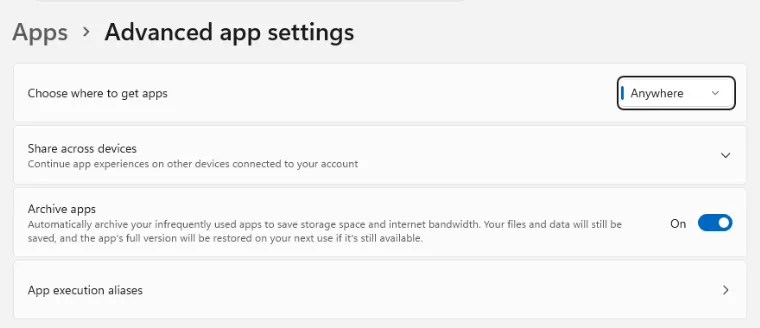
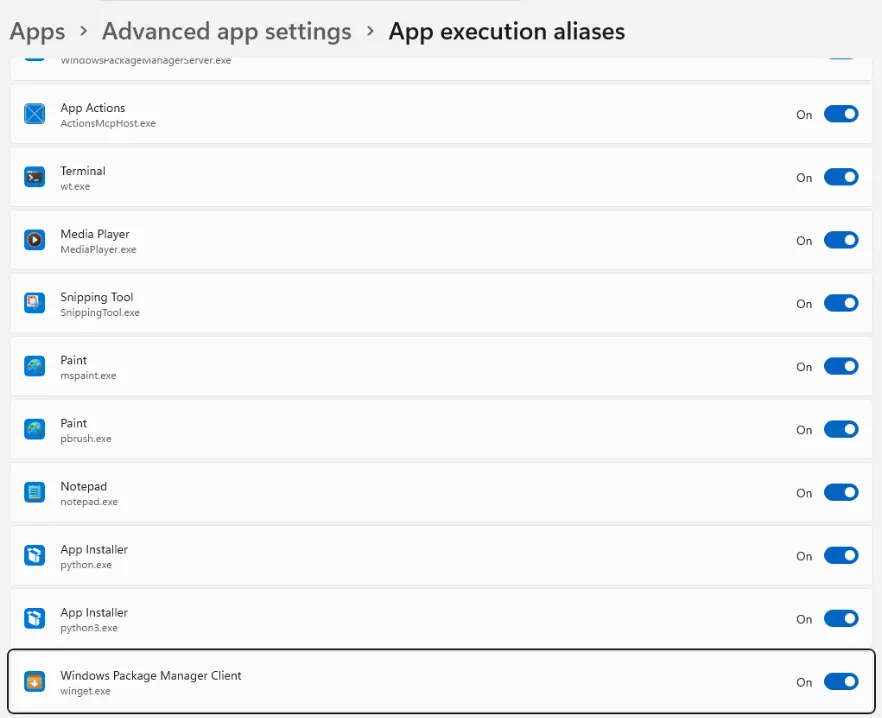
一覧の下のほうに App Installer の項目が 2 つあります。1 つは python.exe、もう 1 つは python3.exe です。
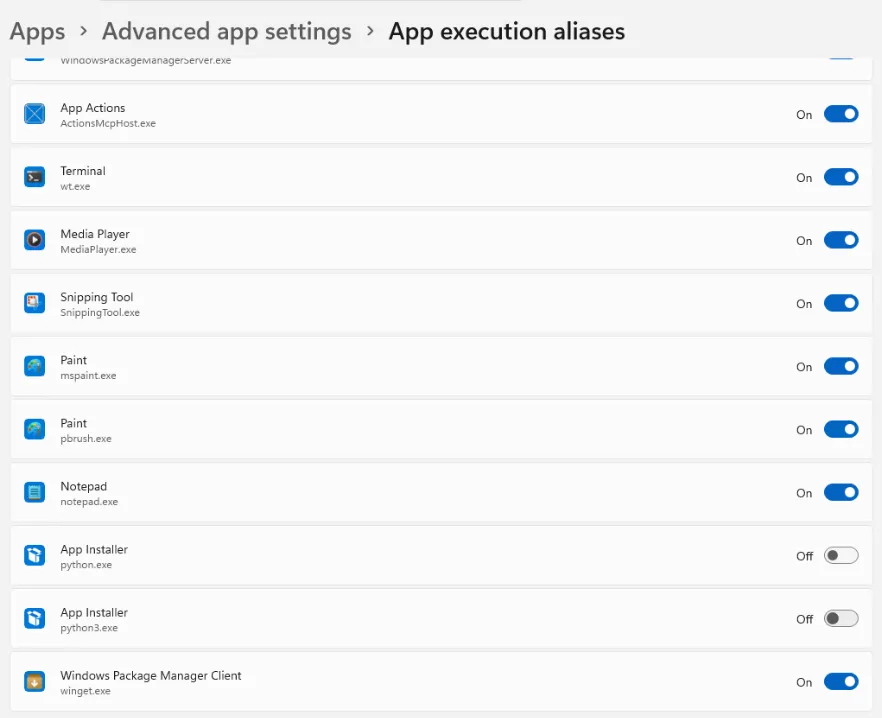
2 つの項目のスイッチを押してオフにします。右側に Off と表示されれば完了です。
設定画面を閉じて PowerShell でもう一度実行すると、今度は python コマンドが見つからないというエラーが表示されます。ショートカットがオフになったということです。
python --versionpython : The term 'python' is not recognized as the name of a cmdlet, function, script file, or operable program.
Check the spelling of the name, or if a path was included, verify that the path is correct and try again.5. pyenv-win をインストール
pyenv-win の公式インストール スクリプトをダウンロードして実行します。Invoke-WebRequest はファイルをダウンロードする PowerShell のコマンドで、-OutFile は保存するファイル名です。後ろの & は、ダウンロードしたスクリプトを実行するという意味です。
Invoke-WebRequest -UseBasicParsing -Uri "https://raw.githubusercontent.com/pyenv-win/pyenv-win/master/pyenv-win/install-pyenv-win.ps1" -OutFile "./install-pyenv-win.ps1"; &"./install-pyenv-win.ps1"& : File C:\Users\devuser\install-pyenv-win.ps1 cannot be loaded because running scripts is disabled on this system.
For more information, see about_Execution_Policies at https:/go.microsoft.com/fwlink/?LinkID=135170.Windows 11 の PowerShell スクリプト実行ポリシーの既定値が Restricted(スクリプトを実行しない)のため、インストール スクリプトは実行されませんでした。ファイルはダウンロードされています。現在のユーザーだけに RemoteSigned ポリシーを適用します。RemoteSigned は、この PC にあるスクリプトは実行し、インターネットからダウンロードしたスクリプトは署名がある場合だけ実行するポリシーです。-Scope CurrentUser で適用すると管理者権限は要らず、ほかのユーザーには影響しません。
Set-ExecutionPolicy -Scope CurrentUser -ExecutionPolicy RemoteSigned
Get-ExecutionPolicy -List
Scope ExecutionPolicy
----- ---------------
MachinePolicy Undefined
UserPolicy Undefined
Process Undefined
CurrentUser RemoteSigned
LocalMachine Restrictedダウンロードしておいたインストール スクリプトをもう一度実行します。ユーザー フォルダーに .pyenv フォルダーが作られ、インストールが完了します。
&"./install-pyenv-win.ps1" Directory: C:\Users\devuser
Mode LastWriteTime Length Name
---- ------------- ------ ----
d----- 10/12/2026 12:07 AM .pyenv
pyenv-win is successfully installed. You may need to close and reopen your terminal before using it.6. pyenv のインストールを確認
案内のとおり PowerShell ウィンドウを閉じて、新しく開きます。インストール前に開いたウィンドウは、変更された環境変数(PATH)を読み込めません。新しいウィンドウでバージョンを確認します。
pyenv --versionpyenv 3.1.1Get-Command pyenv | Format-Table Name, CommandType, Source -AutoSizeName CommandType Source
---- ----------- ------
pyenv.ps1 ExternalScript C:\Users\devuser\.pyenv\pyenv-win\bin\pyenv.ps1pyenv も PowerShell スクリプト(pyenv.ps1)として実行されます。5 の手順で実行ポリシーを変更していなければ、ここでも同じエラーが出ます。
7. インストールできるバージョンを確認
pyenv install --list は、インストールできるバージョンをすべて表示します。一覧が長いので、Select-String で 3.14 と 3.15 だけを選びます。^3\.1[45]\.\d+$ は「3.14.数字」または「3.15.数字」だけの行という意味です。
pyenv install --list | Select-String "^3\.1[45]\.\d+$"3.14.0
3.14.1
3.14.2
3.14.3
3.14.4
3.14.5Python 3.14.8 と 3.15.0 はすでにリリースされていますが、一覧には 3.14.5 までしかありません。pyenv-win はバージョン一覧を保存して使っており、この一覧を更新する pyenv update が Windows 11 では次のエラーで失敗します。この問題は pyenv-win のリポジトリに報告されており、この文書を確認した日の時点では修正されていませんでした。そのため、この文書では一覧にある 3.14.5 と 3.13.13 で進めます。3.15 が必要な場合は、10 の手順の公式インストール マネージャーを使ってください。
pyenv update:: [Info] :: Mirror: https://www.python.org/ftp/python
:: [Info] :: Mirror: https://downloads.python.org/pypy/versions.json
:: [Info] :: Mirror: https://api.github.com/repos/oracle/graalpython/releases
C:\Users\devuser\.pyenv\pyenv-win\libexec\pyenv-update.vbs(172, 13) htmlfile: This command is not supported.8. Python のインストールと既定のバージョンの指定
Python 3.14.5 をインストールします。pyenv-win は python.org の公式インストーラーをダウンロードし、ユーザー フォルダー内にインストールします。管理者権限の確認画面は表示されません。
pyenv install 3.14.5:: [Info] :: Mirror: https://www.python.org/ftp/python
:: [Info] :: Mirror: https://downloads.python.org/pypy/versions.json
:: [Info] :: Mirror: https://api.github.com/repos/oracle/graalpython/releases
:: [Downloading] :: 3.14.5 ...
:: [Downloading] :: From https://www.python.org/ftp/python/3.14.5/python-3.14.5-amd64.exe
:: [Downloading] :: To C:\Users\devuser\.pyenv\pyenv-win\install_cache\python-3.14.5-amd64.exe
:: [Installing] :: 3.14.5 ...
:: [Info] :: completed! 3.14.5インストールしただけでは python コマンドはできません。pyenv global で PC 全体で使う既定のバージョンを決めます。
pyenv global 3.14.5python と pip が実行できるか確認します。pip は Python のパッケージをインストールするツールで、Python と一緒にインストールされます。
python --versionPython 3.14.5pip --versionpip 26.1.1 from C:\Users\devuser\.pyenv\pyenv-win\versions\3.14.5\Lib\site-packages\pip (python 3.14)インストール済みのバージョン一覧で * が付いているのが今使っているバージョンで、かっこ内はそのバージョンを決めたファイルです。
pyenv versions* 3.14.5 (set by C:\Users\devuser\.pyenv\pyenv-win\version)python と pip は、pyenv-win の shims フォルダーにある起動用ファイル経由で実行されます。このファイルが、指定されたバージョンの Python を探して実行します。
Get-Command python, pip | Format-Table Name, CommandType, Source -AutoSizeName CommandType Source
---- ----------- ------
python.bat Application C:\Users\devuser\.pyenv\pyenv-win\shims\python.bat
pip.bat Application C:\Users\devuser\.pyenv\pyenv-win\shims\pip.bat9. プロジェクト フォルダーごとに別のバージョンを使う
Python 3.13 も追加でインストールします。一覧にある 3.13 系の最新バージョンは 3.13.13 でした。
pyenv install 3.13.13:: [Info] :: Mirror: https://www.python.org/ftp/python
:: [Info] :: Mirror: https://downloads.python.org/pypy/versions.json
:: [Info] :: Mirror: https://api.github.com/repos/oracle/graalpython/releases
:: [Downloading] :: 3.13.13 ...
:: [Downloading] :: From https://www.python.org/ftp/python/3.13.13/python-3.13.13-amd64.exe
:: [Downloading] :: To C:\Users\devuser\.pyenv\pyenv-win\install_cache\python-3.13.13-amd64.exe
:: [Installing] :: 3.13.13 ...
:: [Info] :: completed! 3.13.13プロジェクト フォルダー hello-py を作って移動します。| Out-Null は、フォルダー情報の出力を表示しないという意味です。
mkdir hello-py | Out-Null; cd hello-pypyenv local は、今のフォルダーだけで使うバージョンを決めます。このフォルダー(とその下のフォルダー)では 3.13.13、ほかの場所では既定の 3.14.5 が実行されます。
pyenv local 3.13.13
python --version
Python 3.13.13バージョンはフォルダー内の .python-version ファイルに保存されます。このファイルをプロジェクトと一緒に共有すれば、ほかの人も同じバージョンを使えます。
Get-Content .python-version3.13.13pyenv versions* 3.13.13 (set by C:\Users\devuser\hello-py\.python-version)
3.14.5仮想環境(venv)を作る
プロジェクトごとにパッケージを分けてインストールするには、仮想環境を作ります。python -m venv .venv は、今のフォルダーに .venv という仮想環境を作るという意味です。続いて仮想環境を有効にします。有効になると、プロンプトの前に (.venv) が表示されます。
python -m venv .venv
.\.venv\Scripts\Activate.ps1仮想環境の中で requests パッケージをインストールします。python -m pip で実行すると、今の仮想環境の pip が確実に使われます。
python -m pip install requestsCollecting requests
Downloading requests-2.34.2-py3-none-any.whl.metadata (4.8 kB)
Collecting charset_normalizer<4,>=2 (from requests)
Downloading charset_normalizer-3.5.2-cp313-cp313-win_amd64.whl.metadata (47 kB)
Collecting idna<4,>=2.5 (from requests)
Downloading idna-3.20-py3-none-any.whl.metadata (7.2 kB)
Collecting urllib3<3,>=1.26 (from requests)
Downloading urllib3-2.8.0-py3-none-any.whl.metadata (7.4 kB)
Collecting certifi>=2023.5.7 (from requests)
Downloading certifi-2026.7.22-py3-none-any.whl.metadata (2.5 kB)
Downloading requests-2.34.2-py3-none-any.whl (73 kB)
Downloading charset_normalizer-3.5.2-cp313-cp313-win_amd64.whl (206 kB)
Downloading idna-3.20-py3-none-any.whl (69 kB)
Downloading urllib3-2.8.0-py3-none-any.whl (135 kB)
Downloading certifi-2026.7.22-py3-none-any.whl (136 kB)
Installing collected packages: urllib3, idna, charset_normalizer, certifi, requests
Successfully installed certifi-2026.7.22 charset_normalizer-3.5.2 idna-3.20 requests-2.34.2 urllib3-2.8.0
[notice] A new release of pip is available: 26.0.1 -> 26.2.1
[notice] To update, run: python.exe -m pip install --upgrade pipインストールしたパッケージを読み込んで、バージョンを表示してみます。
python -c "import sys, requests; print('Python', sys.version.split()[0], '/ requests', requests.__version__)"Python 3.13.13 / requests 2.34.2Python のバージョンと requests のバージョンが表示されれば、Python、pip、仮想環境はすべて正常です。仮想環境から出るときは deactivate を実行します。
deactivate10. (別の方法)Python 公式インストール マネージャーでインストール
python.org は、Windows 用の公式インストール マネージャー Python Install Manager を提供しています。py コマンドで必要なバージョンをダウンロードしてインストールし、複数のバージョンをまとめて管理できます。新しい Python のバージョンもすぐにインストールできます。この方法を使う場合も、4 の手順のように Microsoft Store のショートカットをオフにしておいてください。
winget でインストール マネージャーを検索します。winget を初めて使うと、Microsoft Store ソースの規約への同意を求められます。Y を入力して Enter を押します。
winget search Python.PythonInstallManagerThe `msstore` source requires that you view the following agreements before using.
Terms of Transaction: https://aka.ms/microsoft-store-terms-of-transaction
The source requires the current machine's 2-letter geographic region to be sent to the backend service to function properly (ex. "US").
Do you agree to all the source agreements terms?
[Y] Yes [N] No:インストール マネージャーをインストールします。管理者権限の確認画面は表示されません。
winget install Python.PythonInstallManagerFound Python Install Manager [Python.PythonInstallManager] Version 26.4.240.0
This application is licensed to you by its owner.
Microsoft is not responsible for, nor does it grant any licenses to, third-party packages.
Successfully verified installer hash
Starting package install...
██████████████████████████████ 100%
Successfully installedpy install の後にバージョンを書くと、その系の最新バージョンがインストールされます。3.15 をインストールします。初めて実行すると、インストール マネージャーが自動で最新版に更新されます。
py install 3.15Python install manager was successfully updated to 26.4.
Please see https://github.com/python/pymanager/releases/tag/26.4 for all changes.
The signature for https://www.python.org/ftp/python/index-windows.json was successfully verified.
Installing Python 3.15.0.
Extracting: ...............................................................✅
Global shortcuts directory is not on PATH. Add it for easy access to global Python aliases.
Directory to add: C:\Users\devuser\AppData\Local\Python\binpy ではすぐに実行できますが、python コマンドはまだありません。最後の 2 行の案内のとおり、python コマンドが入っているフォルダーが PATH に登録されていないためです。
py --versionPython 3.15.0python --versionpython : The term 'python' is not recognized as the name of a cmdlet, function, script file, or operable program.
Check the spelling of the name, or if a path was included, verify that the path is correct and try again.3.14 も一緒にインストールし、インストール済みのバージョン一覧を確認します。* が付いているのが既定のバージョンです。
py install 3.14The signature for https://www.python.org/ftp/python/index-windows.json was successfully verified.
Installing Python 3.14.8.
Downloading: ...............................................................✅
Extracting: ...............................................................✅
Global shortcuts directory is not on PATH. Add it for easy access to global Python aliases.
Directory to add: C:\Users\devuser\AppData\Local\Python\binpy listTag Name Managed By Version Alias
3.15[-64] * Python 3.15.0 PythonCore 3.15.0 python3[-64].exe, python3.15[-64].exe
3.14[-64] Python 3.14.8 PythonCore 3.14.8 python3.14[-64].exe特定のバージョンで実行するときは、-V: の後にバージョンを書きます。
py -V:3.14 --versionPython 3.14.8python コマンドでも実行するには、案内されたフォルダーをユーザーの PATH に追加します。今のユーザーの PATH の末尾に ; とフォルダーのパスを付けて保存し直すコマンドで、何も出力されません。
[Environment]::SetEnvironmentVariable("Path", [Environment]::GetEnvironmentVariable("Path", "User") + ";$env:LOCALAPPDATA\Python\bin", "User")PowerShell ウィンドウを閉じて新しく開き、確認します。python は既定のバージョン(3.15.0)、python3.14 は 3.14 で実行されます。
python --versionPython 3.15.0python3.14 --versionPython 3.14.8pip --versionpip 26.2.1 from C:\Users\devuser\AppData\Local\Python\pythoncore-3.15-64\Lib\site-packages\pip (python 3.15)11. トラブルシューティング
Python was not found; run without arguments to install from the Microsoft Store, or disable this shortcut from Settings > Apps > Advanced app settings > App execution aliases.
Python がインストールされていないか、Python より先に Windows の Microsoft Store のショートカットが実行されたという意味です。4 の手順のように 設定 › アプリ › アプリの詳細設定 › アプリ実行エイリアス で App Installer の python.exe・python3.exe をオフにしてから、PowerShell ウィンドウを新しく開いてもう一度確認してください。
& : File C:\Users\devuser\install-pyenv-win.ps1 cannot be loaded because running scripts is disabled on this system.
PowerShell のスクリプト実行ポリシーが Windows 11 の既定値 Restricted のために出るエラーです。Set-ExecutionPolicy -Scope CurrentUser -ExecutionPolicy RemoteSigned を実行してからもう一度実行してください。pyenv コマンドと仮想環境の Activate.ps1 も、同じ理由でこの設定が必要です。
pyenv-update.vbs(172, 13) htmlfile: This command is not supported.
pyenv-win の pyenv update が Windows 11 で失敗するエラーで、pyenv-win のリポジトリに報告されています。このエラーが出るとバージョン一覧が更新されないため、最近リリースされた Python のバージョンを pyenv でインストールできません。最新バージョンが必要な場合は、10 の手順の公式インストール マネージャーを使ってください。
python : The term 'python' is not recognized as the name of a cmdlet, function, script file, or operable program.
pyenv を使っている場合は、pyenv global で既定のバージョンを決めていないか、インストール前に開いたウィンドウで実行したという意味です。pyenv versions で * が付いたバージョンがあるか確認し、新しい PowerShell ウィンドウでもう一度実行してください。公式インストール マネージャーを使っている場合は、10 の手順のように %LOCALAPPDATA%\Python\bin をユーザーの PATH に追加したか確認してください。py コマンドは PATH に追加しなくても実行できます。
12. 削除する
pyenv-win を削除
pyenv-win のインストール スクリプトに -Uninstall を付けて実行すると、.pyenv フォルダー(インストールした Python のバージョンを含む)と環境変数をすべて削除します。インストール時にダウンロードした install-pyenv-win.ps1 があるユーザー フォルダーで実行します。
&"./install-pyenv-win.ps1" -UninstallRemoving C:\Users\devuser\.pyenv...
Removing environment variables...
pyenv-win successfully uninstalled.ユーザーの PATH に pyenv のパスが残っていないか確認します。
[Environment]::GetEnvironmentVariable("Path", "User") -split ";"C:\Users\devuser\AppData\Local\Microsoft\WindowsApps今開いている PowerShell ウィンドウには、PYENV などの環境変数が残って見えることがあります。ウィンドウを開いたときに読み込んだ値のためで、新しいウィンドウを開けば消えます。
公式インストール マネージャーと Python を削除
py uninstall --yes --purge は、インストールした Python のバージョンとショートカット、ダウンロードしたファイルを確認なしですべて削除します。続いて、インストール マネージャー自体を winget で削除します。
py uninstall --yes --purgePurging Python 3.15.0 from C:\Users\devuser\AppData\Local\Python\pythoncore-3.15-64
Purging Python 3.14.8 from C:\Users\devuser\AppData\Local\Python\pythoncore-3.14-64
Purging saved downloads from C:\Users\devuser\AppData\Local\Python\_cache
Removing global commands directory from PATH
Purging global commands from C:\Users\devuser\AppData\Local\Python\bin
Purging all shortcutswinget uninstall Python.PythonInstallManagerFound Python Install Manager [Python.PythonInstallManager]
Starting package uninstall...
██████████████████████████████ 100%
Successfully uninstalled削除後も空の Python フォルダーが残ります。削除して確認します。False と表示されれば、すべて削除されています。
Remove-Item "$env:LOCALAPPDATA\Python" -Recurse -Force
Test-Path "$env:LOCALAPPDATA\Python"FalseMicrosoft Store のショートカットを元に戻す
4 の手順でオフにしたアプリ実行エイリアスを元どおり使いたい場合は、同じ画面で App Installer の python.exe・python3.exe のスイッチをもう一度オンにします。
このドキュメントは役に立ちましたか? 間違いや変わった点があればお知らせください。
内容の修正を依頼