
Verified guide
This guide was verified by creating a cloud server and running every command in it, from start to finish, exactly as written.
- OS
- Windows 11 Pro 25H2 (build 26200) · x64
- Installed version
- nvm-windows 2.0.1, Node.js 24.21.0 LTS / 22.23.3, npm 11.19.0, winget Node.js 24.20.0
- Test server
- Microsoft Azure · 2 vCPU / 4 GB RAM (Standard_B2als_v2, koreacentral)
- Last checked
- 2026-10-12
Install Node.js LTS on Windows 11 with nvm-windows, then check node and npm, switch versions, fix the npm.ps1 execution error, and remove everything cleanly. This guide also covers installing Node.js alone with winget, without nvm.
1. Requirements
- A Windows 11 PC (x64)
- A user account in the Administrators group — you click Yes once in a User Account Control prompt during setup
- An internet connection
Every step in this guide was tested on a Windows 11 Pro 25H2 (build 26200, x64) virtual machine with 2 vCPUs and 4 GB of memory. We signed in with a regular account in the Administrators group, and the PowerShell script execution policy was left at the Windows 11 default (Restricted).
2. Choosing an installation method
This guide covers two methods.
- Install with nvm-windows (recommended): you can keep several Node.js versions installed and switch between them with one command. You need this when different projects require different Node.js versions. Covered in steps 3–9.
- Install only Node.js with winget: simpler when you only need one Node.js version. Covered in step 10.
If you use both methods on the same PC, it becomes unclear which node runs. Choose one.
3. Check the current state
Search for PowerShell in the Start menu and open it. You do not need to run it as administrator. If Node.js is not installed, you get an error saying the node command cannot be found.
node -vnode : The term 'node' is not recognized as the name of a cmdlet, function, script file, or operable program. Check
the spelling of the name, or if a path was included, verify that the path is correct and try again.If a version number appears, Node.js is already installed. To manage Node.js with nvm-windows, first remove the existing Node.js using the removal steps in step 12 or from Settings › Apps › Installed apps.
4. Download nvm-windows
The nvm-windows installer is on the GitHub releases page (github.com/nvm-windows/nvm/releases). The project moved here from its old address, coreybutler/nvm-windows. Download nvm-2.0.1-x64-setup.exe from the releases page, or save it to your Downloads folder with the PowerShell command below. curl.exe is a download tool included with Windows 11. -L follows the link if the address redirects, and -o sets the file name to save.
curl.exe -L -o "$env:USERPROFILE\Downloads\nvm-2.0.1-x64-setup.exe" https://github.com/nvm-windows/nvm/releases/download/v2.0.1/nvm-2.0.1-x64-setup.exeCheck that the downloaded file has a valid digital signature. If Status is Valid and the signer is Author Software Inc., the file is fine.
Get-AuthenticodeSignature "$env:USERPROFILE\Downloads\nvm-2.0.1-x64-setup.exe" | Format-List Status, SignerCertificateStatus : Valid
SignerCertificate : [Subject]
CN=Author Software Inc., O=Author Software Inc., L=Austin, S=Texas, C=US5. Install nvm-windows
Double-click nvm-2.0.1-x64-setup.exe in your Downloads folder, or run it from PowerShell.
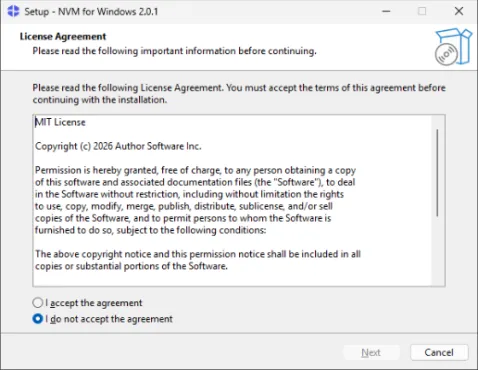
& "$env:USERPROFILE\Downloads\nvm-2.0.1-x64-setup.exe"On the license screen, select I accept the agreement and click Next.
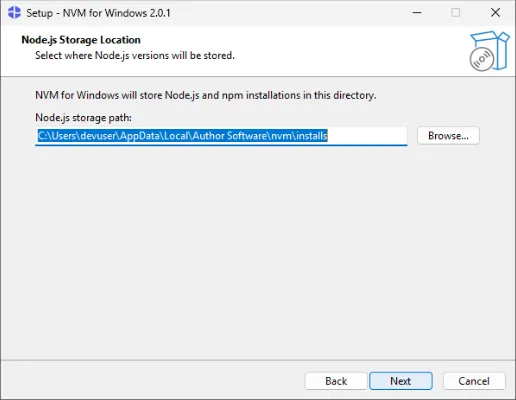
This is the folder where Node.js versions are stored. The default is AppData\Local\Author Software\nvm\installs inside your user folder. Leave it as is and click Next.
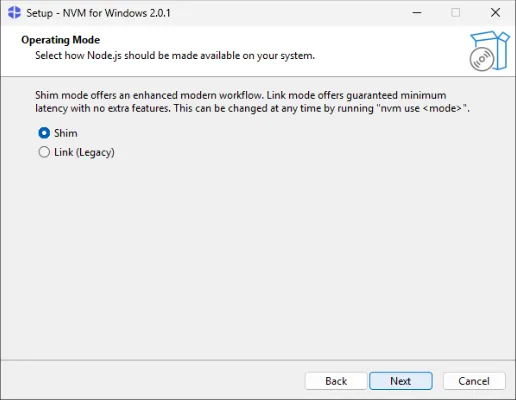
Leave the operating mode at the default, Shim. In Shim mode, the node and npm commands run through small launcher files that nvm creates, so switching versions does not need administrator rights.
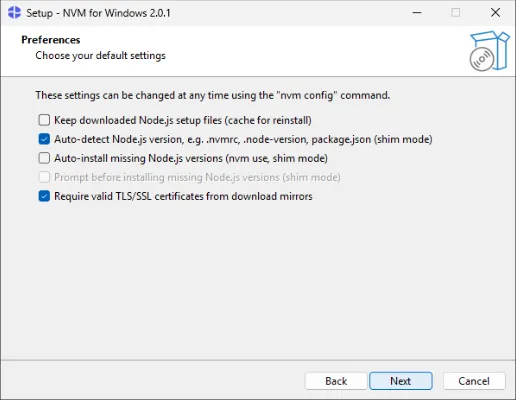
Leave the default settings as they are and click Next. You can change these settings later with the nvm config command.
This screen asks for an email address for development news. It is optional, so delete the name@example.com text in the box, leave it empty, and click Next.
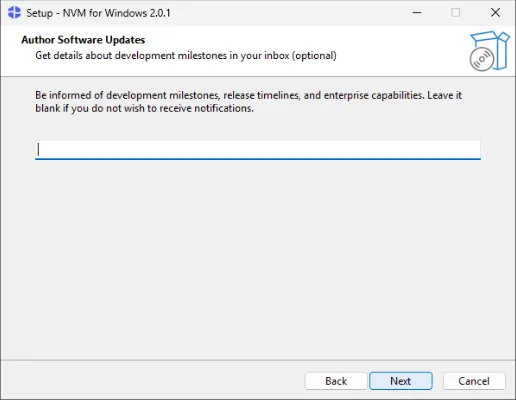
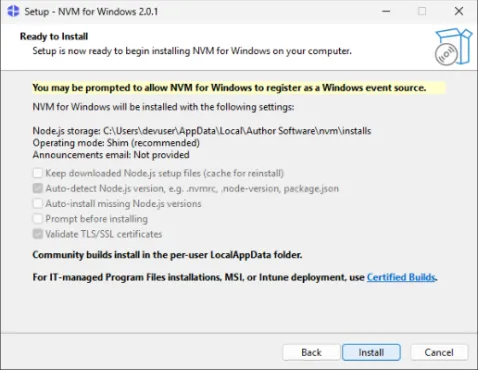
Review what will be installed and click Install. Announcements email: Not provided means no email address was entered.
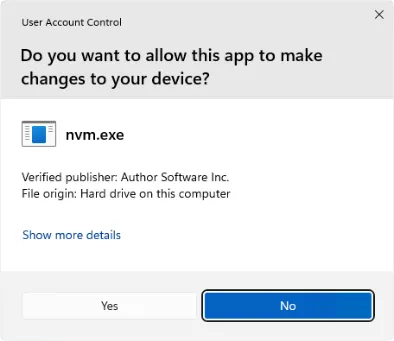
During setup, a User Account Control prompt for nvm.exe appears. Check that the publisher is Author Software Inc. and click Yes. Administrator rights are needed for the step that registers nvm with the Windows Event Log.
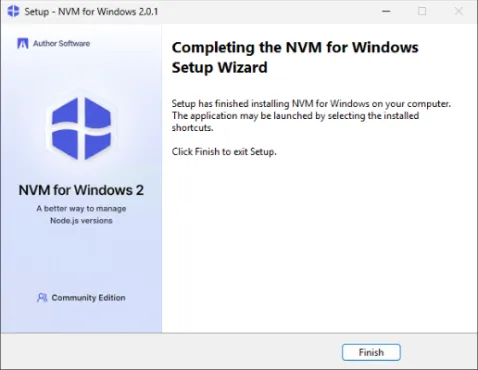
Click Finish on the completion screen.
6. Check the nvm installation
Close the PowerShell window you had open and open a new one. A window opened before installation cannot read the updated environment variable (PATH), so it cannot find the nvm command. Check the version in the new window.
nvm versionv2.0.17. Install Node.js LTS
LTS is the long-term support release. Install LTS unless you have a specific reason not to. Writing lts finds and installs the newest LTS version.
nvm install ltsNow using Node.js v24.21.0 by default.
Installed 1 version: 24.21.0
Completed in 54sThe first version you install becomes the default right away. Check that node, npm, and npx run.
node -vv24.21.0npm -v11.19.0npx -v11.19.0You can also check which file runs for each command. All three point to .exe files in the nvm folder.
Get-Command node, npm, npx | Format-Table Name, CommandType, Source -AutoSizeName CommandType Source
---- ----------- ------
node.exe Application C:\Users\devuser\AppData\Local\Author Software\nvm\.nodejs\node.exe
npm.exe Application C:\Users\devuser\AppData\Local\Author Software\nvm\.nodejs\npm.exe
npx.exe Application C:\Users\devuser\AppData\Local\Author Software\nvm\.nodejs\npx.exe8. Install and switch to another version
Check which versions you can install. The numbers are the major versions to show, and --limit=6 shows only the six newest versions.
nvm list releases 24 22 --limit=6 Version Released
------- ----------
* v24.21.0 2026-09-07 installed, current default
v24.20.0 2026-08-26
v24.19.0 2026-08-03
v24.18.1 2026-07-28 security release
v24.18.0 2026-06-23
v24.17.0 2026-06-17 security release
6 versions listed.Install Node.js 22 as well. If you give only the major version, the newest release of that version is installed. From the second install on, the version is installed but the default does not change.
nvm install 22Installed 1 version: 22.23.3
Completed in 32sCheck the list of installed versions. The one marked with * and (default) is the version in use.
nvm list* 24.21.0 (default)
22.23.3Switch versions with nvm use. Administrator rights are not needed.
nvm use 22Now using Node.js v22.23.3 by default.node -vv22.23.3To go back to LTS, write lts.
nvm use ltsNow using Node.js v24.21.0 by default.node -vv24.21.09. Run a first project with npm
To confirm that everything works, install an npm package and run it. Create a hello-node folder under your user folder and move into it. npm init -y creates a package.json file with default values, without asking questions.
mkdir hello-node; cd hello-node
npm init -y
The folder details and the contents of the new package.json are shown. Next, install dayjs, a package for working with dates.
npm install dayjsadded 1 package, and audited 2 packages in 2s
found 0 vulnerabilitiesCreate an index.js file that uses dayjs and run it. Set-Content creates a file with the text in quotes, so it prints nothing.
Set-Content index.js "const dayjs = require('dayjs'); console.log('Hello Node.js', process.version, dayjs().format('YYYY-MM-DD'));"
node index.js
Hello Node.js v24.21.0 2026-10-11If the Node.js version and today's date appear, Node.js and npm both work.
10. (Alternative) Install only Node.js with winget
If you do not need several versions, you can install Node.js alone with winget, the package manager included with Windows 11. First, search for the Node.js packages you can install. The first time you use winget, it asks you to accept the terms of the Microsoft Store source. Type Y and press Enter.
winget search OpenJS.NodeJSDo you agree to all the source agreements terms?
[Y] Yes [N] No: y
Name Id Version Source
------------------------------------------------
Node.js OpenJS.NodeJS 26.8.1 winget
Node.js 22 OpenJS.NodeJS.22 22.23.2 winget
Node.js (LTS) OpenJS.NodeJS.LTS 24.20.0 wingetInstall the LTS version. If a User Account Control prompt for Node.js appears during setup, click Yes. Packages reach winget a little later than nodejs.org. On the day this guide was tested, the newest LTS on nodejs.org was 24.21.0 and winget had 24.20.0.
winget install OpenJS.NodeJS.LTSFound Node.js (LTS) [OpenJS.NodeJS.LTS] Version 24.20.0
This application is licensed to you by its owner.
Microsoft is not responsible for, nor does it grant any licenses to, third-party packages.
Downloading https://nodejs.org/dist/v24.20.0/node-v24.20.0-x64.msi
██████████████████████████████ 31.6 MB / 31.6 MB
Successfully verified installer hash
Starting package install...
The installer will request to run as administrator. Expect a prompt.
Successfully installedClose the PowerShell window, open a new one, and check. node runs, but with default Windows 11 settings npm fails with the error below.
node -vv24.20.0npm -vnpm : File C:\Program Files\nodejs\npm.ps1 cannot be loaded because running scripts is disabled on this system. For
more information, see about_Execution_Policies at https:/go.microsoft.com/fwlink/?LinkID=135170.The official installer runs npm as a PowerShell script (npm.ps1), and the default PowerShell script execution policy on Windows 11 is Restricted, which does not run scripts.
Get-ExecutionPolicy -List Scope ExecutionPolicy
----- ---------------
UserPolicy Undefined
Process Undefined
CurrentUser Undefined
LocalMachine RestrictedApply the RemoteSigned policy for the current user only. RemoteSigned runs scripts that are on this PC and runs scripts downloaded from the internet only if they are signed. With -Scope CurrentUser, you do not need administrator rights and other users are not affected.
Set-ExecutionPolicy -Scope CurrentUser -ExecutionPolicy RemoteSigned
Get-ExecutionPolicy -Scope CurrentUserRemoteSignednpm -v11.19.011. Troubleshooting
nvm : The term 'nvm' is not recognized as the name of a cmdlet, function, script file, or operable program.
You ran the command in a PowerShell window that was open before nvm was installed. That window cannot read the environment variable (PATH) that changed during installation. Close the window and open a new one. If a new window shows the same error, check that NVM for Windows appears in Settings › Apps › Installed apps.
npm : File C:\Program Files\nodejs\npm.ps1 cannot be loaded because running scripts is disabled on this system.
This error appears when Node.js was installed with the official installer or winget and the PowerShell script execution policy is Restricted. Run Set-ExecutionPolicy -Scope CurrentUser -ExecutionPolicy RemoteSigned as in step 10, or run npm.cmd instead. If you installed with nvm-windows 2.0, npm runs as npm.exe and this error does not occur.
Note: The 'available' argument is deprecated. Please use 'releases' instead.
When you run nvm list available from nvm-windows 1.x on 2.0, this note appears with the list. On 2.0, use nvm list releases. If you add a major version, as in nvm list releases 22, only that version is shown.
node : The term 'node' is not recognized as the name of a cmdlet, function, script file, or operable program.
Node.js is not installed, or you ran the command in a window that was open before installation. Check again in a new PowerShell window. If you use nvm, run nvm list to check that a version is installed and that one is marked (default).
Remove-Item : Cannot remove item C:\Users\…\AppData\Local\Author Software\nvm\.shim: Access to the path is denied.
nvm-windows 2.0 locks the .shim folder so that the user cannot change it. Delete it from a PowerShell window running as administrator, as in step 12.
12. Uninstall
Remove a single Node.js version
To remove one of the versions installed with nvm, use nvm uninstall.
nvm uninstall 22Uninstalled Node.js v22.23.3nvm list* 24.21.0 (default)Uninstall nvm-windows
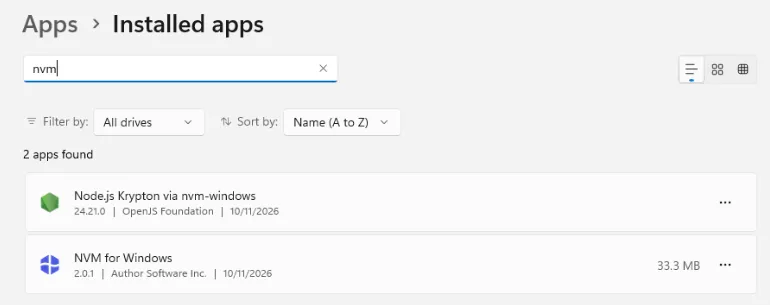
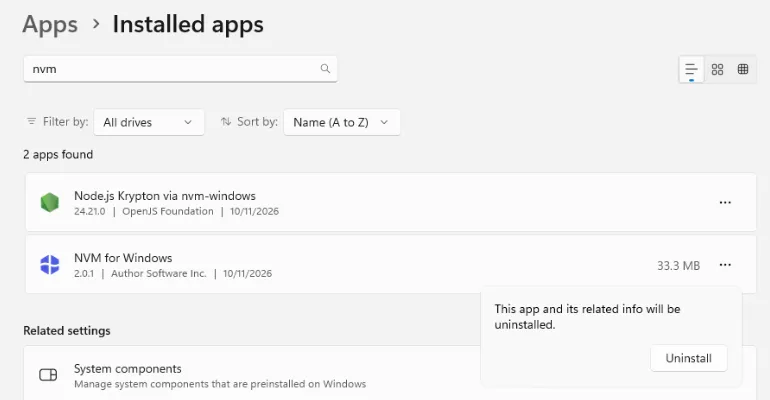
Search for nvm in Settings › Apps › Installed apps. Node.js installed with nvm also appears in the list, as Node.js Krypton via nvm-windows for example. Click … to the right of NVM for Windows, then click Uninstall.
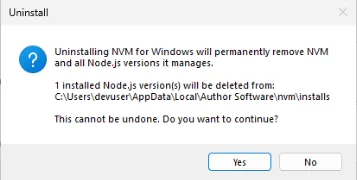
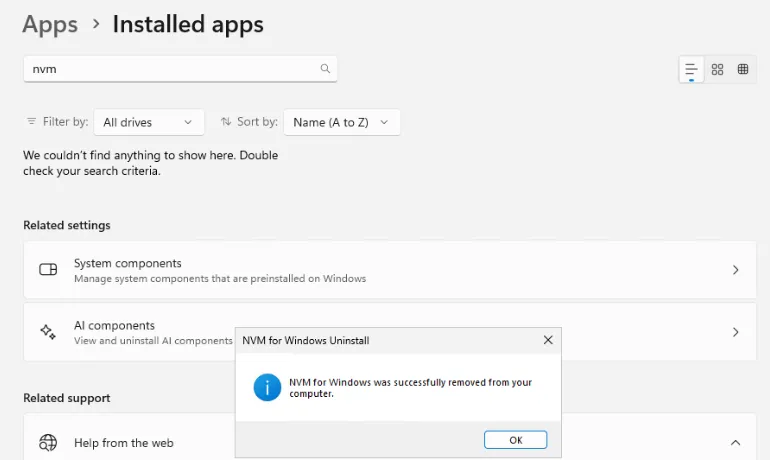
A message says that all Node.js versions managed by nvm will also be removed. Click Yes, and click Yes again on the next prompt, "Are you sure you want to completely remove NVM for Windows and all of its components?"
Clean up what is left
After uninstalling, two nvm entries remain in the user PATH environment variable, and the .shim folder remains. Check in a new PowerShell window.
[Environment]::GetEnvironmentVariable("Path", "User") -split ";"C:\Users\devuser\AppData\Local\Author Software\nvm
C:\Users\devuser\AppData\Local\Author Software\nvm\.nodejs
C:\Users\devuser\AppData\Local\Microsoft\WindowsAppsRemove only the nvm entries from PATH and save it again. The first line builds a list without the entries that contain Author Software\nvm, and the second line saves that list as the user PATH. Also delete the npm-cache folder, where npm keeps downloaded packages.
$userPath = [Environment]::GetEnvironmentVariable("Path", "User") -split ";" | Where-Object { $_ -notlike "*Author Software\nvm*" }
[Environment]::SetEnvironmentVariable("Path", ($userPath -join ";"), "User")
Remove-Item "$env:LOCALAPPDATA\npm-cache" -Recurse -Force
[Environment]::GetEnvironmentVariable("Path", "User") -split ";"C:\Users\devuser\AppData\Local\Microsoft\WindowsAppsThe remaining Author Software folder cannot be deleted from a regular PowerShell window ("Access to the path is denied"). Open PowerShell as administrator and delete it there. Running the first line below shows a User Account Control prompt; click Yes and an administrator PowerShell window opens.
Start-Process powershell -Verb RunAsRun the following in the new administrator PowerShell window. If False appears, everything has been removed.
Remove-Item "$env:LOCALAPPDATA\Author Software" -Recurse -Force
Test-Path "$env:LOCALAPPDATA\Author Software"FalseRemove Node.js installed with winget
If you installed with winget in step 10, remove it with the command below. Click Yes in the User Account Control prompt. If the installation folder is gone, False appears.
winget uninstall OpenJS.NodeJS.LTSFound Node.js [OpenJS.NodeJS.LTS]
Starting package uninstall...
Successfully uninstalledTest-Path "C:\Program Files\nodejs"FalseWas this guide helpful? Let us know if anything is wrong or out of date.
Request a correction